
Room service
Room 12 can order now
A guest scans the QR on their nightstand, browses the live menu, and orders — it waits with staff until someone accepts, then the kitchen fires and it's delivered.
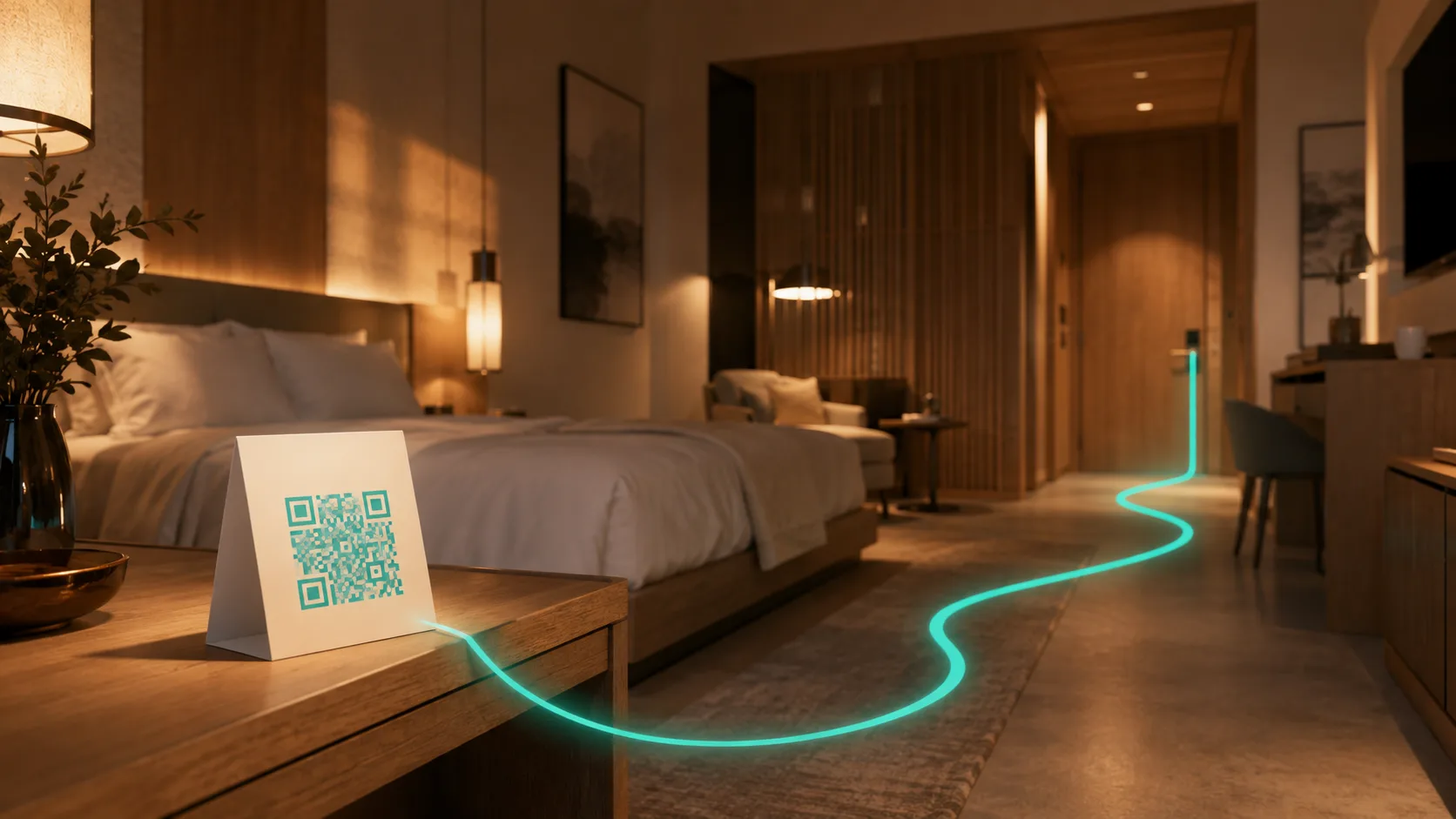
How an order moves
From scan to delivered.
01
Scan
The guest scans the QR on their nightstand, poolside chair, or event table and orders from the live menu — no app, no account.
02
Accept
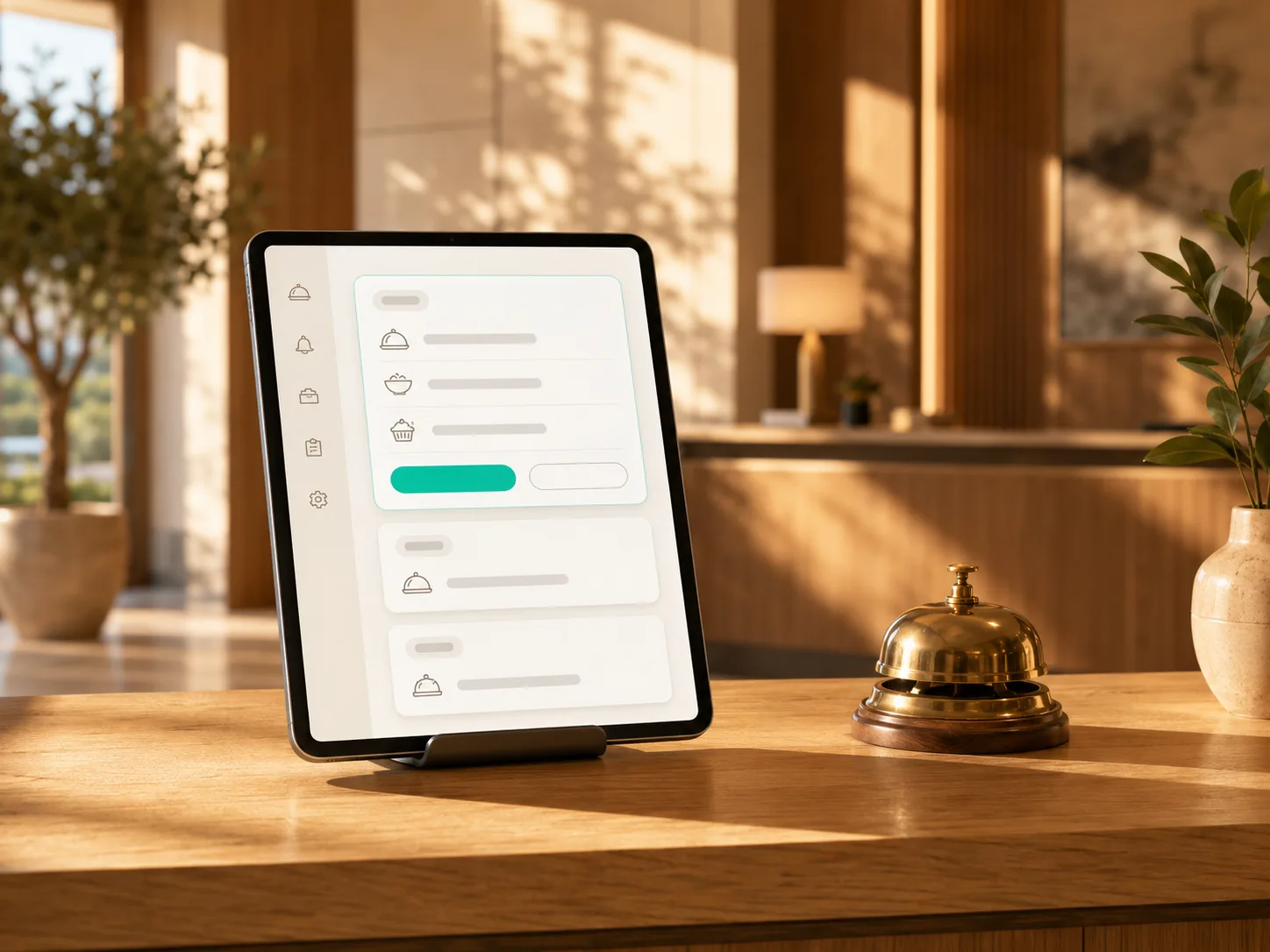
The order sits with staff first. Nothing reaches the kitchen until someone taps "Accept & send to kitchen."
03
Kitchen ticket
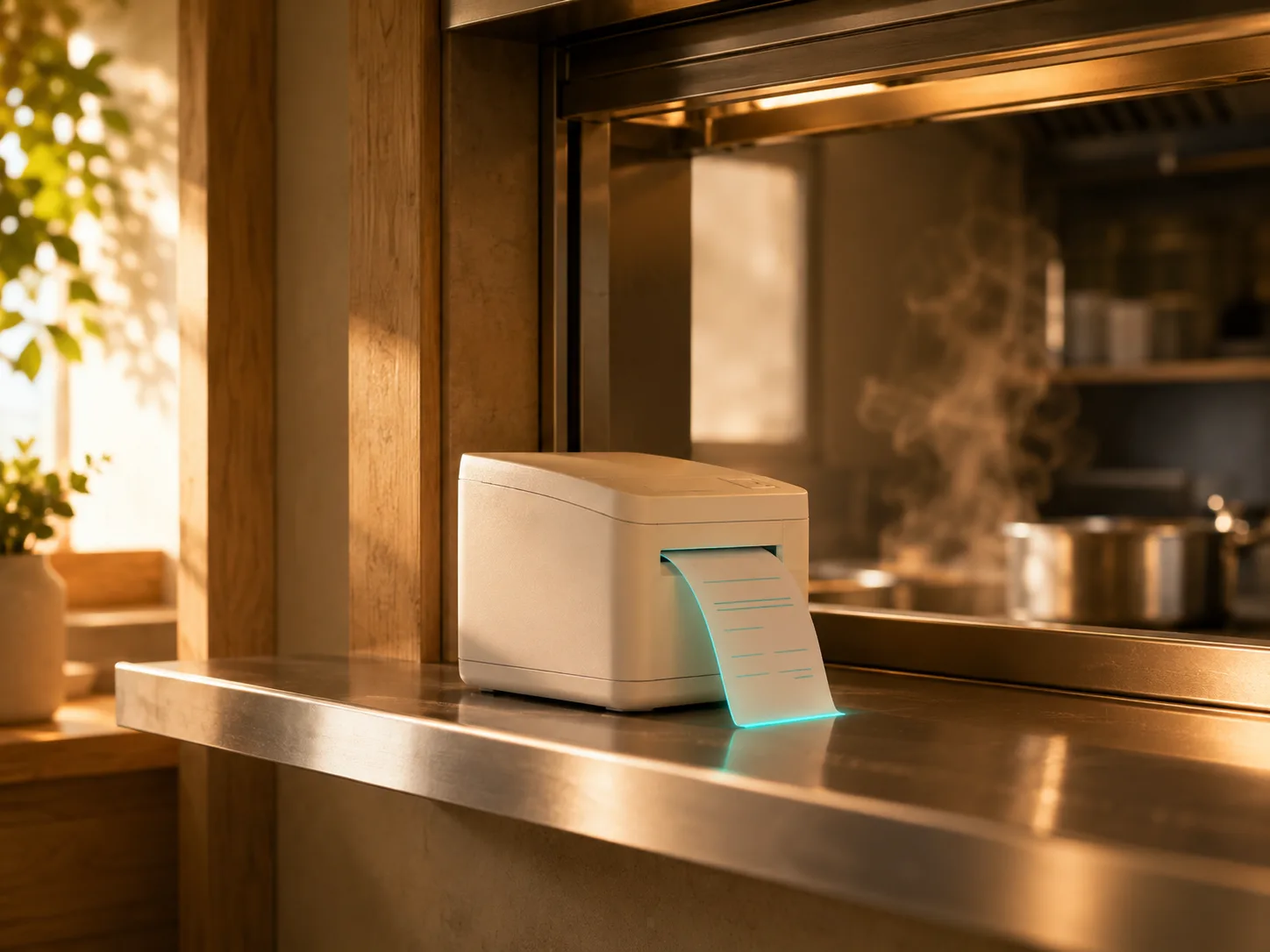
Accepting prints a kitchen ticket — the room or table label large, items and modifiers listed, ready for the pass.
04
Delivered
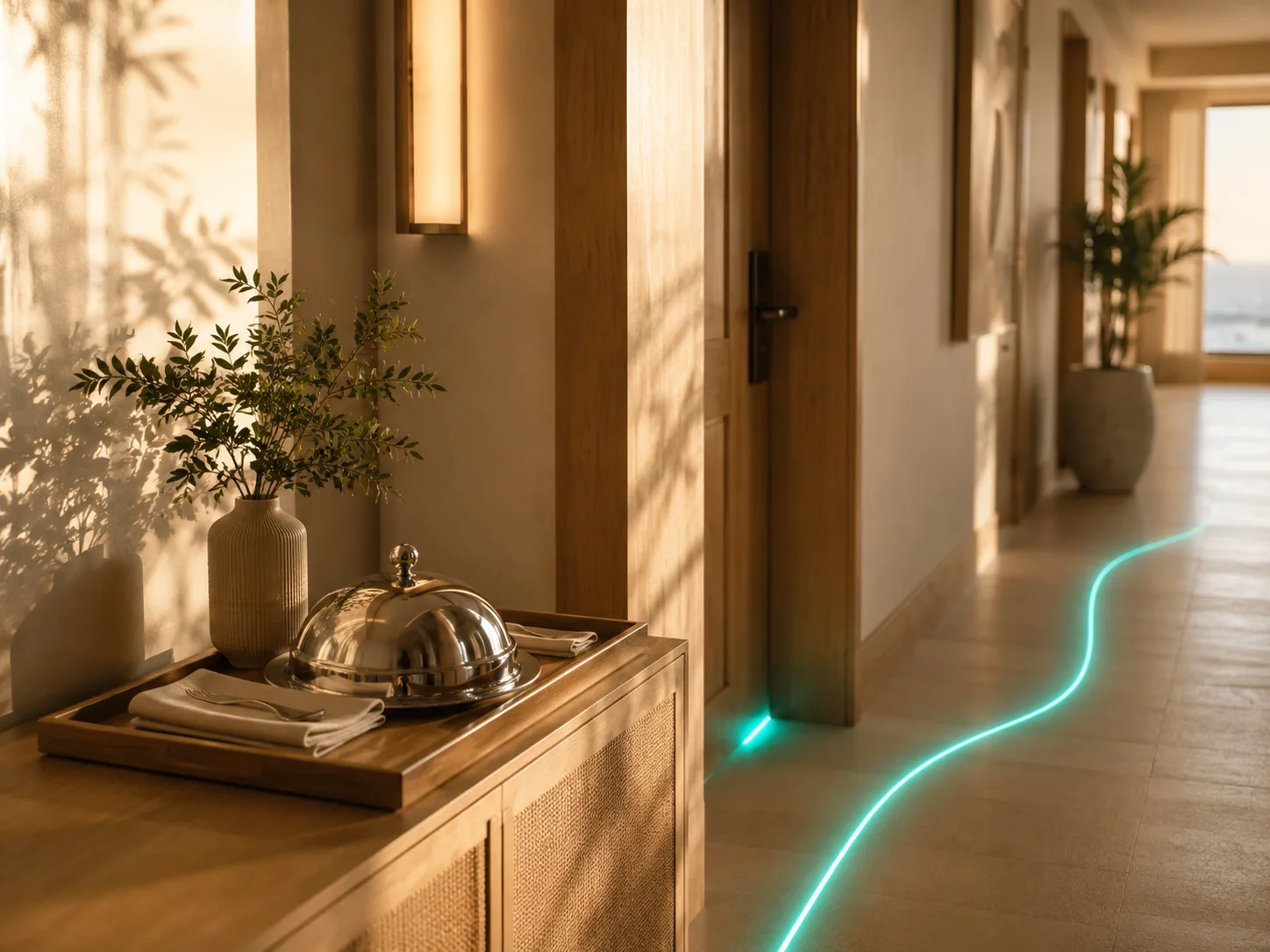
It goes out for delivery and gets marked delivered — billed on arrival or at checkout, whichever you run.
Staff review, before the kitchen
Nothing reaches the kitchen until someone says so.
Every room-service order lands in a staff-visible "New orders" column first. The kitchen board stays empty until a person explicitly accepts — no setting, override, or auto-start can skip this.
A staff push notification reaches the front desk's phone the moment an order lands — even with the dashboard tab closed.
New orders
Preparing
Nothing yet
The headline console feature
86 an item from the console.
Flip an item's availability with one switch, right in the console's Menu panel — no trip to the rate-card editor. It disappears from the guest menu on their very next refresh.
Menus can also run on a fixed date period — the exact mechanism a wedding or banquet menu uses to go live only for its event window.
Reporting
Know how service went.
Daily orders, revenue, and average accept-to-delivered time, plus a top-items and per-room breakdown — one dashboard, no spreadsheet.
Before they even check in
A menu guests can browse before arrival.
Every queue has its own public, no-login menu page — share the link in a booking confirmation email, or drop it straight into your hotel's own website.
/menu/{code}
Find "Share menu page" in the QR codes panel — it copies the link and an embeddable iframe snippet.
Questions
Frequently asked questions
Can the kitchen see an order before staff accepts it?
No — every room-service order sits in a staff-visible queue first. The kitchen board only shows orders after someone taps "Accept & send to kitchen", and no setting can bypass that gate.
How do we mark an item sold out?
From the console's Menu panel — flip the availability switch on any item in two taps, no trip to the rate-card editor required. It disappears from the guest menu on their next refresh.
Can we run a menu that only exists for one event or weekend?
Yes — schedule a rate card for a fixed date period. It goes live automatically for the window and reverts afterward, which is exactly how the Weddings & Events template runs a one-off banquet menu.
Do guests need to download an app to see the menu before they arrive?
No — every queue has a public menu page at its own link, browsable from any phone or your hotel's own website, with no login and no app.
Do we get notified of a new order if the dashboard tab is closed?
Yes — staff can subscribe to push notifications per queue (or for every queue they manage), so a new room-service order reaches a phone even with no browser tab open.
Ready when you are
Give every room its own order button.
Free to start, live in minutes — print your first QR today.