
SETUP · KIOSK PC AT THE PASS
Tickets that print without a tap.
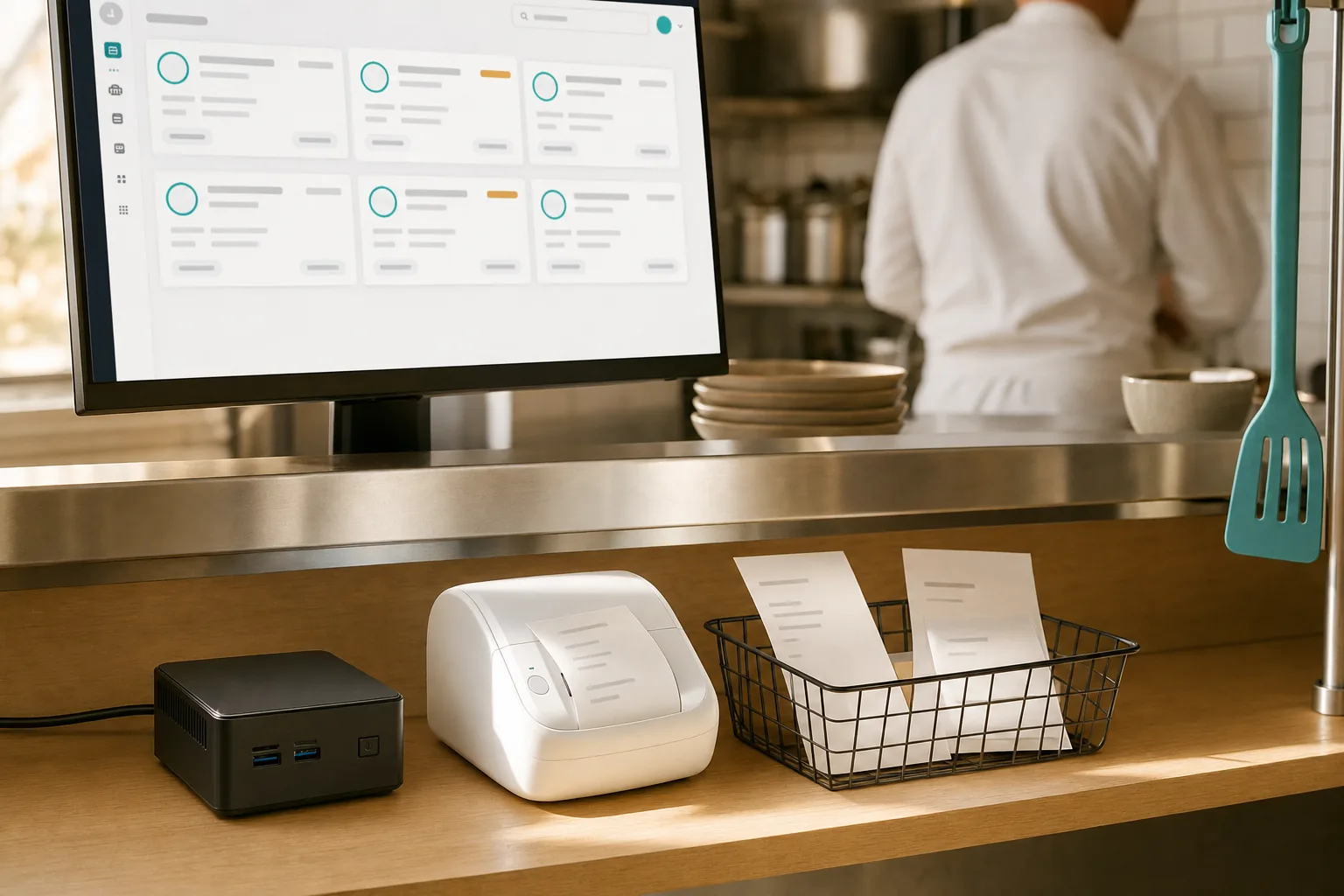
A small dedicated computer at the pass, a thermal printer beside it, and orders that reach the line on paper while everyone keeps their hands on the food.
HOW IT RUNS
Nobody touches anything
Three beats, and none of them are yours.
The order arrives
A customer orders and pays at the counter, or a colleague confirms payment on the till. Either way the order is now real.
The machine prints it
The computer at the pass is already logged in and watching that queue. The ticket prints with no dialog and no keystroke.
The line works from paper
Items, options and notes, laid out for 80 mm thermal. No prices — a prep slip is not a bill.
The print happens on the same event the kitchen board reacts to, so paper and screen never disagree.
WHAT YOU NEED
Two things at the pass
About the price of one month of a traditional POS terminal, paid once.
THE ONE PURCHASE
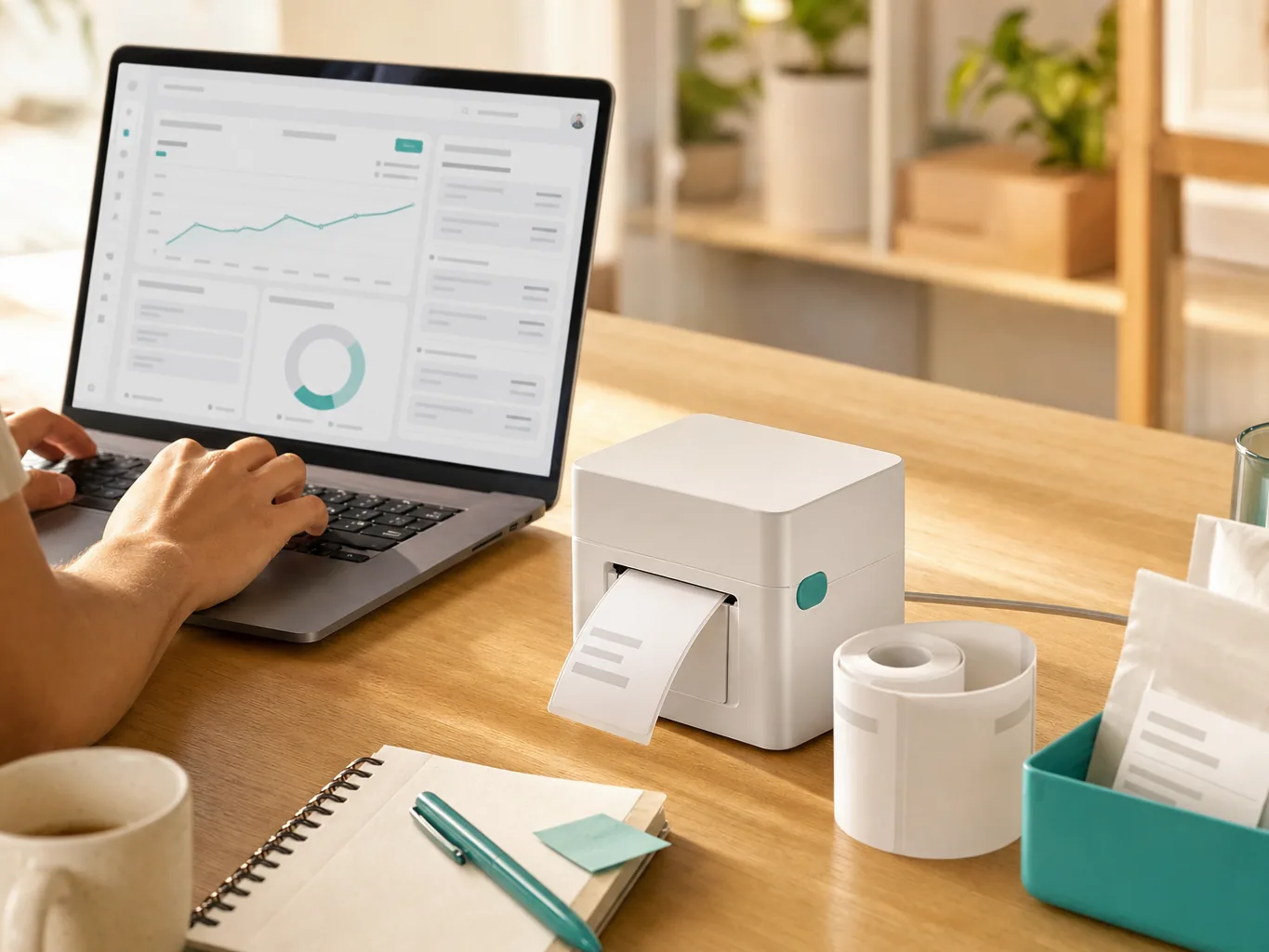
A small computer
A mini-PC or ChromeBox is plenty — this machine does one job and never moves. Second-hand is fine.
ROLE · PREP SLIP
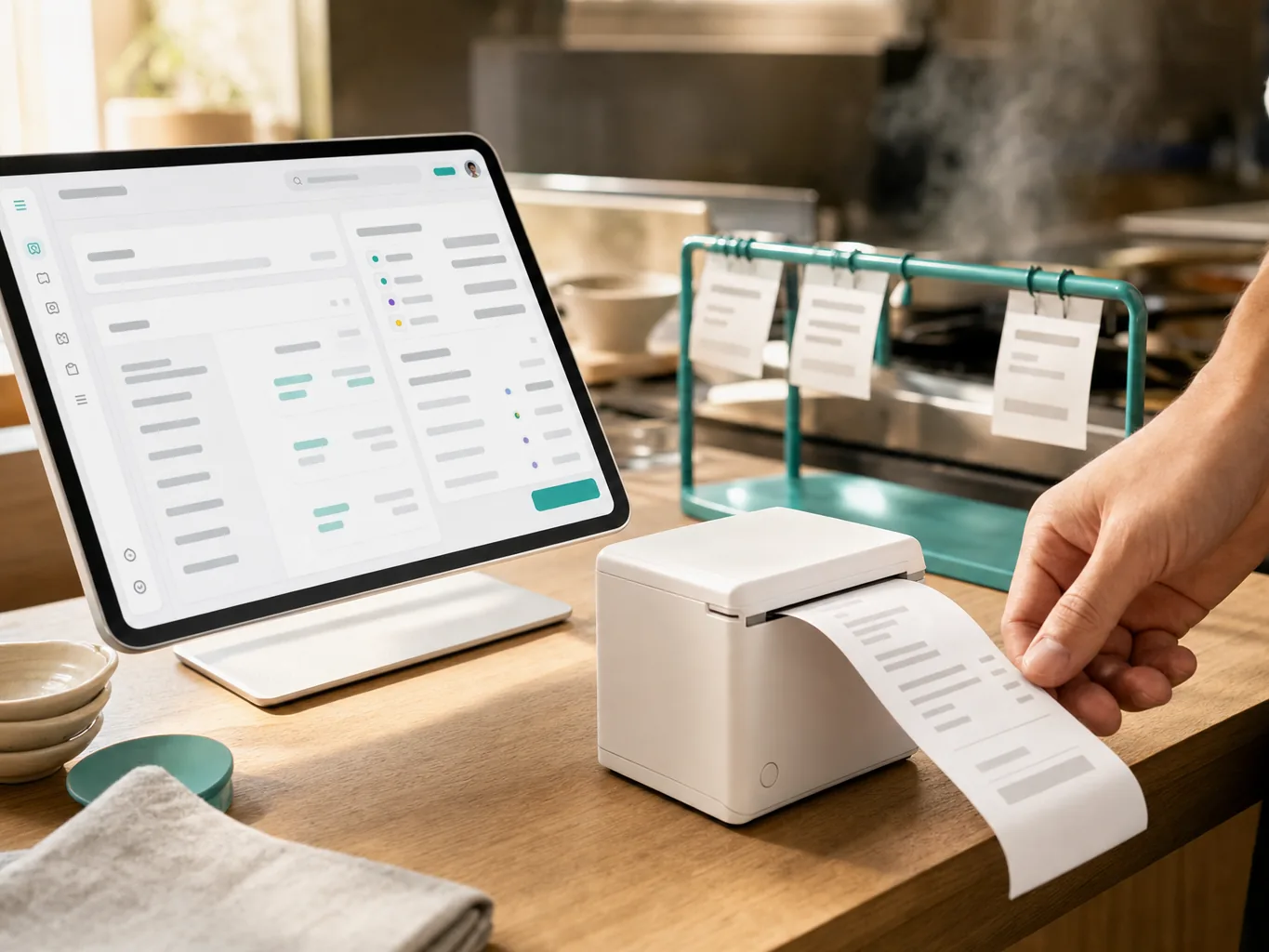
A thermal printer
Any 80 mm printer with a driver for that operating system. This is the one setup where the driver route is the strength rather than the compromise.
What it costs, roughly
Budget for the printer and the small computer once. You also need a screen, keyboard and mouse while you set the machine up — borrowing them for an afternoon is fine. The software starts free and we never take a cut of what you charge. See pricing →
We don't sell hardware and take no commission — these are rough street prices to help you budget, not quotes.
Does your printer connect over Wi-Fi or LAN? Then you don't need a computer at all — a tablet sends the ticket straight to it the moment you confirm the order. The machine here is what lets ANY printer run with nobody standing at it.
See the tablet setup →SEE IT
Paper, and nobody in the room
WATCH · 8 SECONDS · NO SOUND
SETTING UP
An afternoon, once
Longer than the other setups, and then never again.
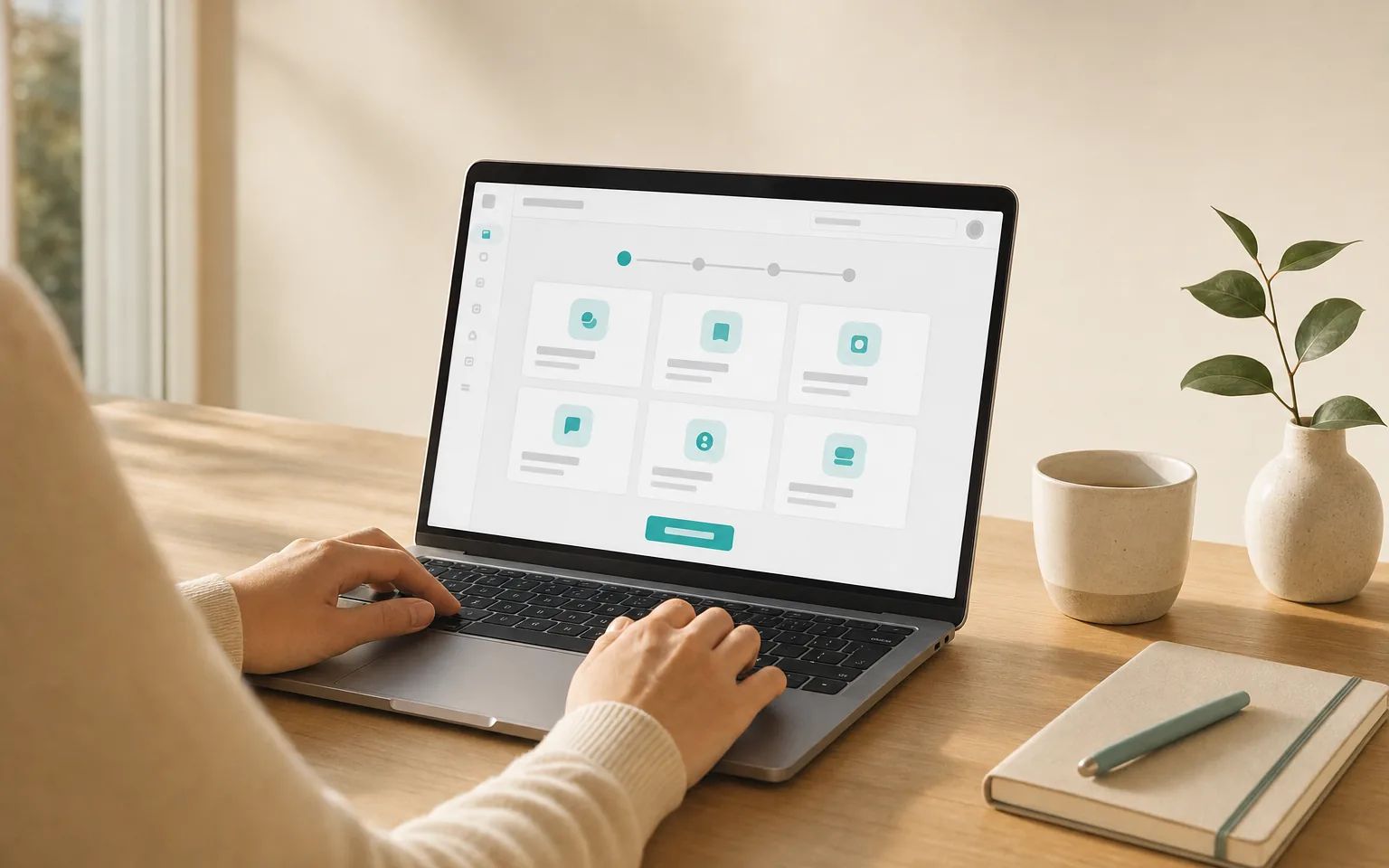
Create your queue
Pick the template that matches how you serve. Menu, options and prices go in once.
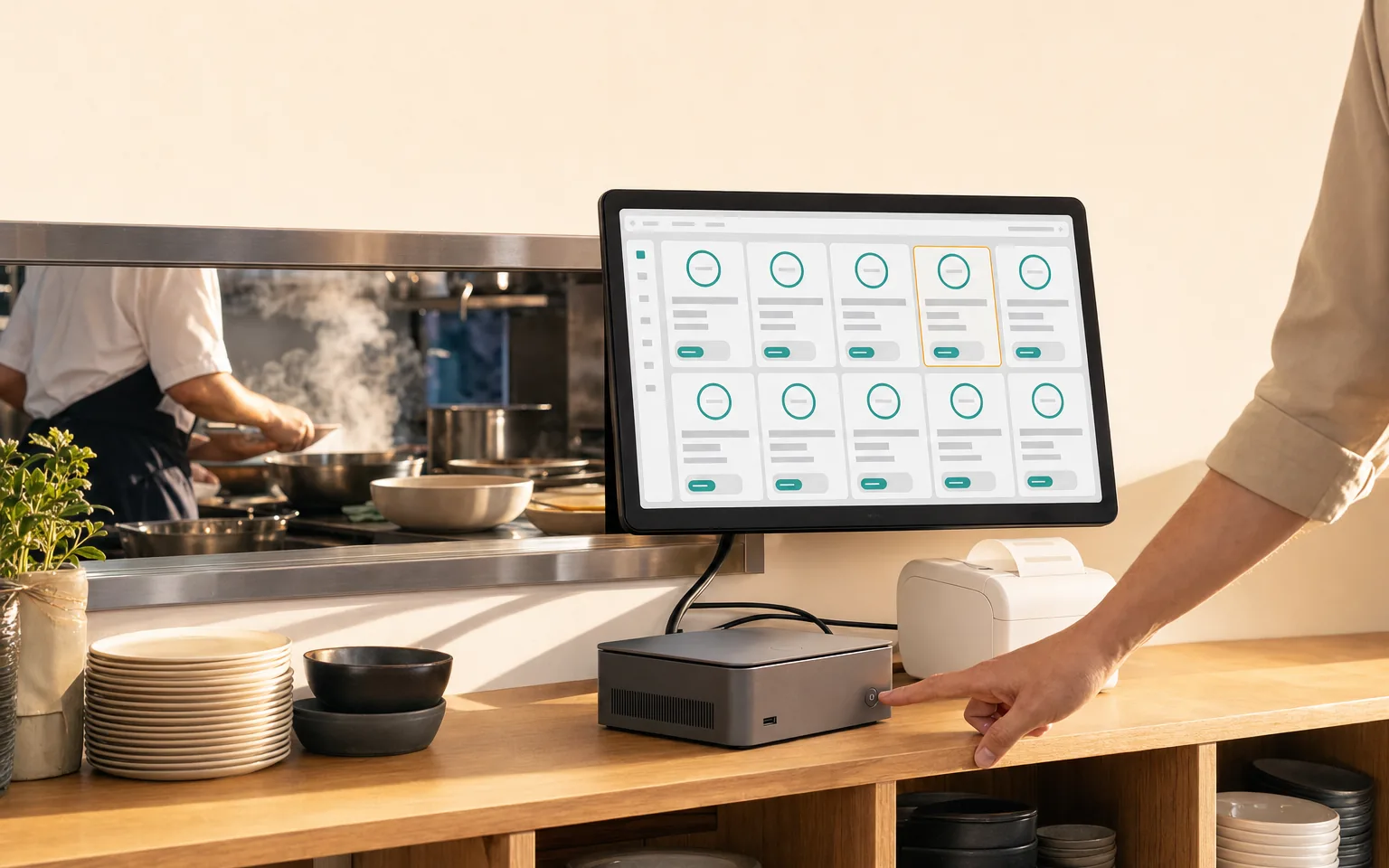
Set up the machine
Plug a screen, keyboard and mouse into the little computer for this part. Install the printer as the computer's default, then launch the browser in kiosk mode on the kitchen page. The steps are copy-and-paste, per operating system. Most people leave the screen connected afterwards — the machine holds the kitchen page open full-screen, so it doubles as a board you can read from the line.
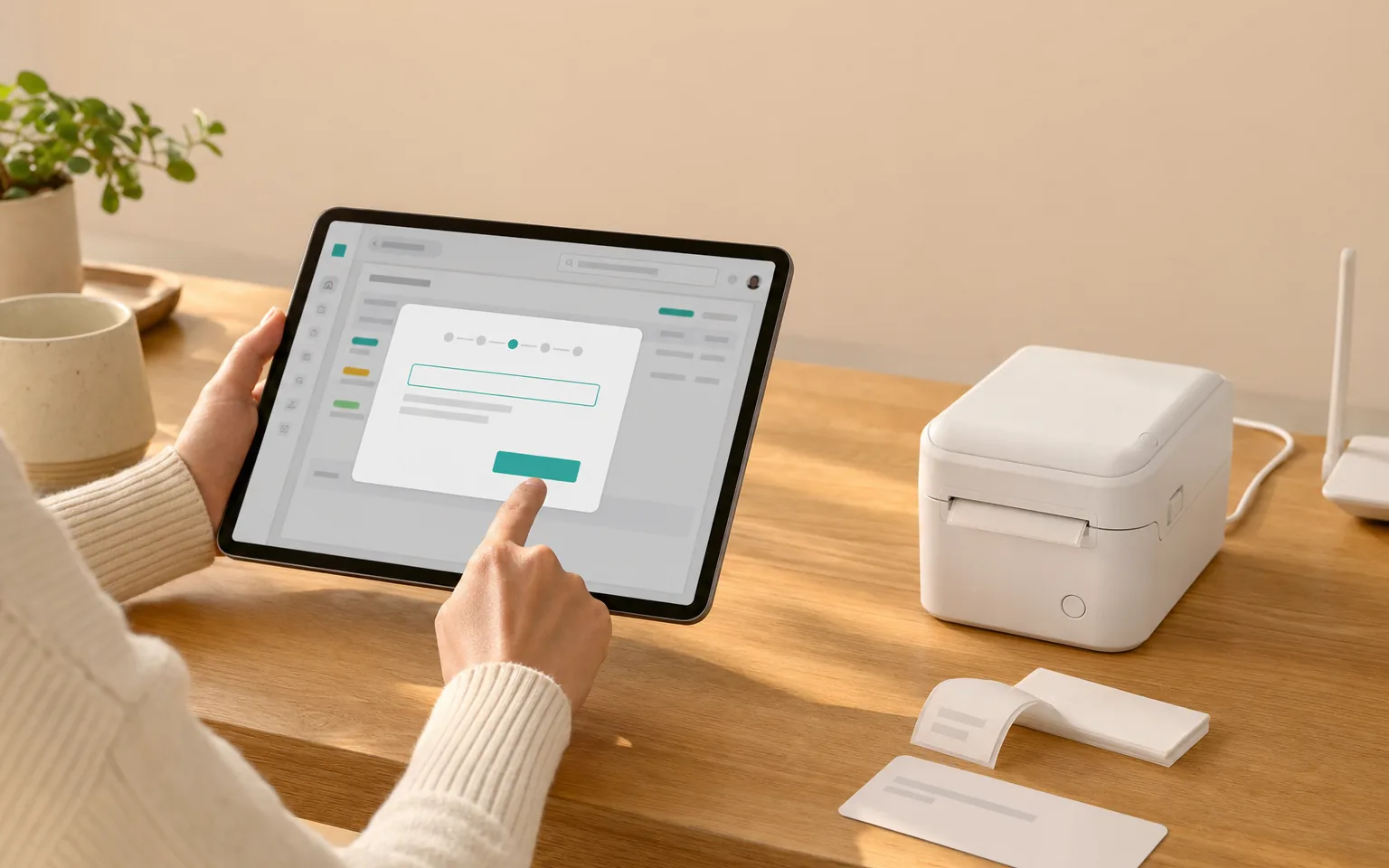
Register the station
Printing → this device becomes a print station, so the system knows which machine is responsible for paper.
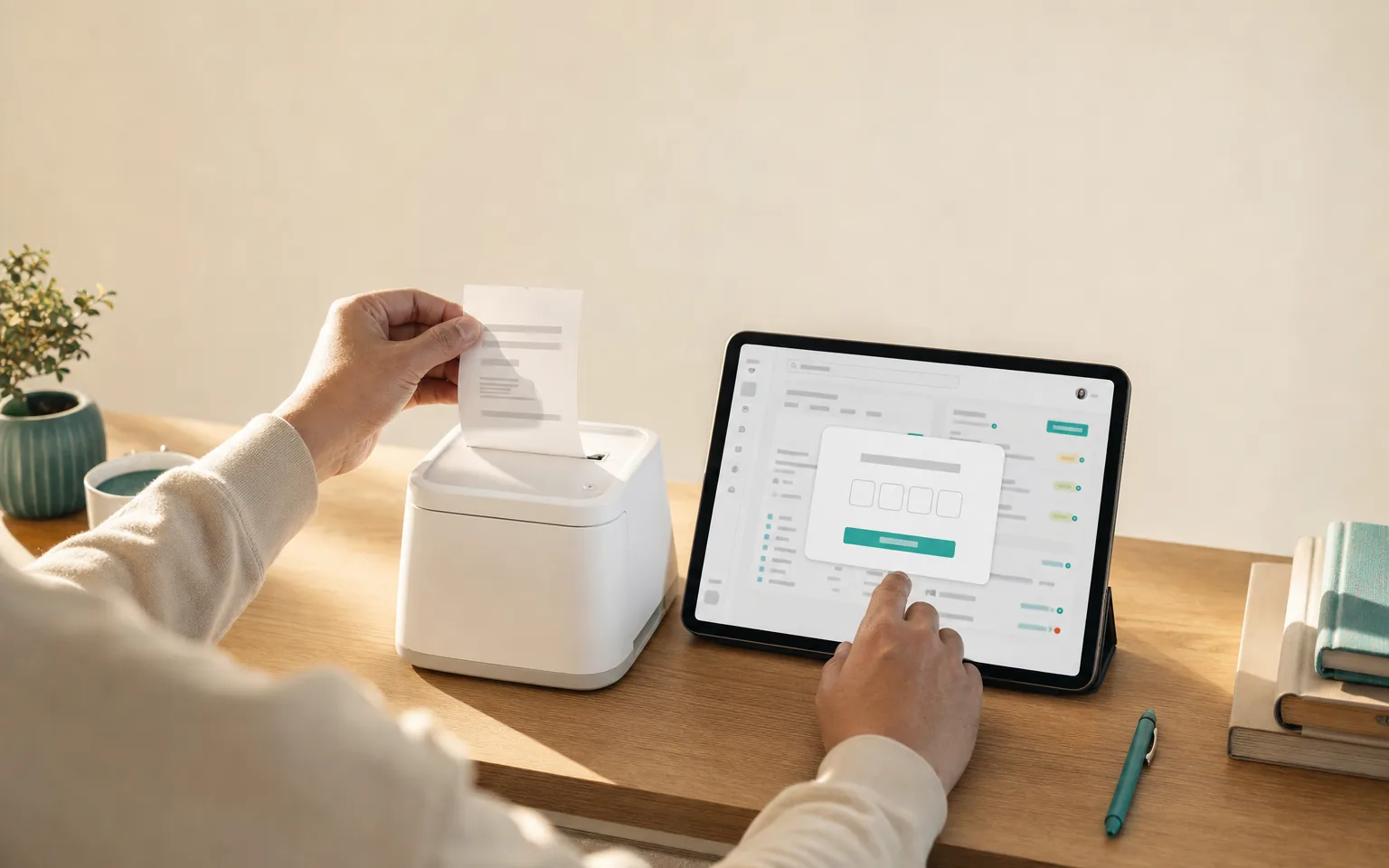
Print a test, type the code
A test ticket comes out with four characters on it. Type them in and the whole chain is confirmed — popup, driver, paper.
Every step here is the same guided flow you'll see in the dashboard, with your actual machine in front of you.
New to network printers? The illustrated Epson TM-m30 guide →
BEFORE YOU BUY
The conditions, stated plainly
This is the strongest unattended setup we have. It is not effortless, and we would rather you knew which.
Silent printing is a configuration, not a promise
Tickets print with no dialog only when the browser runs in kiosk mode and the printer is that computer's default. Both are one-time settings and the setup steps cover them — but they are conditions, and a setup that skips them will ask someone to confirm every ticket.
GOOD TO KNOW
A reprint always prints
Automatic printing is exactly-once across every device on the queue. When you tap reprint yourself, we never second-guess you — that copy comes out even if the first one already did.
GOOD TO KNOW
A dropped connection costs you a minute, not an order
If the network blips, the board catches up as soon as it returns and anything missed prints within about a minute. Nothing is lost — it simply arrives late, and staff notifications cover the gap.
GOOD TO KNOW
One ticket, one printer
A ticket carries the whole order on a single sheet. Sending drinks to a bar printer and food to the kitchen by item category is not something we do today. Venues that need it run a separate queue per station, at the cost of ordering twice.
More than one station?
A resort with room service, a poolside bar and an events floor runs the same setup once per station. Each station keeps its own queue, its own screen and its own printer, and only ever sees its own orders — there is no shared list to filter and nothing to route by hand.
See how hotels run it →Questions we actually get
Do tickets really print with nobody touching anything?
Yes, once the machine is set up. It needs a browser in kiosk mode with the printer set as the computer's default — the steps above walk through both. That configuration is what makes it work, and we would rather say so than call it plug and play.
What hardware do we actually need?
A cheap mini-PC or small desktop, a screen for the initial setup, and any 80 mm thermal printer with a driver for that operating system. Nothing has to be bought from us.
What happens if the internet drops mid-service?
The board catches up automatically when the connection returns, and anything missed prints within about a minute rather than being lost. Staff notifications cover the gap in the meantime.
Can one kitchen serve several counters?
Yes. Each station runs its own screen and printer, and each only ever sees its own orders. There is more on that further down this page.
Can we send drinks to a bar printer and food to the kitchen?
Not yet. A ticket carries the whole order on one sheet; splitting an order across station printers by item category is not something we do today, and we will not pretend otherwise.
Put paper in your kitchen
Start free and set the machine up when it suits you. No card required.